
- OpenAI Lockdown Mode is a new optional security feature designed to protect against prompt injection and data exfiltration risks.
- OpenAI Lockdown Mode is available to all users, including those on the free tier, and can be enabled in ChatGPT’s settings.
- Enabling Lockdown Mode disables Deep Research and Agent Mode, and blocks ChatGPT from pulling images or downloading files from the web.
- OpenAI is also rolling out a session manager so users can see and revoke active logins across all their devices.
- OpenAI Lockdown Mode is a new optional security feature designed to protect against prompt injection and data exfiltration risks.
- OpenAI Lockdown Mode is available to all users, including those on the free tier, and can be enabled in ChatGPT’s settings.
- Enabling Lockdown Mode disables Deep Research and Agent Mode, and blocks ChatGPT from pulling images or downloading files from the web.
- OpenAI is also rolling out a session manager so users can see and revoke active logins across all their devices.
Table of Contents
OpenAI Lockdown Mode Takes Aim at a Growing AI Security Problem
OpenAI Lockdown Mode is the company’s most direct answer yet to one of the trickiest security problems in modern AI: prompt injection. It’s an optional setting now rolling out across ChatGPT, and while OpenAI is quick to point out that most users won’t need it, its arrival says something important about where AI threats are heading.
Prompt injection isn’t a new concept — security researchers have been flagging it as a concern since large language models started gaining real-world traction — but it’s become significantly more dangerous as AI systems have grown more capable. The moment you give a chatbot the ability to browse the web, read documents, and execute tasks on your behalf, you’ve also given attackers a potential lever. Hide a malicious instruction inside a webpage or a PDF, and a sufficiently autonomous AI might just follow it.
The risk isn’t theoretical. Researchers have repeatedly demonstrated prompt injection attacks against AI assistants from multiple vendors, embedding hidden text in websites or documents that instruct the model to leak data, impersonate the user, or take actions the user never intended. As agentic AI — systems that can browse, click, write code, and send emails — becomes more mainstream, the consequences of a successful attack escalate fast. OpenAI Lockdown Mode addresses this threat directly by restricting the external channels attackers rely on.
What OpenAI Lockdown Mode Actually Does
OpenAI is positioning the feature as a last line of defense rather than a first one. The company already claims to build protections against prompt injection into ChatGPT itself, its models, and its backend infrastructure. Lockdown Mode sits on top of all that, adding a harder shell for users who genuinely need it.
The key mechanism is network restriction. OpenAI Lockdown Mode limits the external network requests that ChatGPT can make during a session. That matters because the most damaging prompt injection attacks don’t just trick an AI — they trick it into sending your data somewhere. Cut the outbound channels, and even a successful injection has nowhere to go.
Here’s what that means in practice. With Lockdown Mode enabled, ChatGPT can still generate images and accept file uploads you manually provide. But it can no longer pull images from the internet, display images inline in its responses, or download files for analysis. Two of the platform’s more powerful features — Deep Research and Agent Mode — are disabled entirely. Those are also, not coincidentally, the features with the most exposure to external content and the broadest ability to take actions on your behalf.
What doesn’t change: memory, the ability to share conversations, file uploads you initiate yourself, and whether your conversations feed back into model training. OpenAI notes that many of those settings are configurable separately by workspace administrators anyway, so enterprise teams already managing those controls won’t see disruption there.
Who Should Actually Enable It
OpenAI is refreshingly direct about the target audience here. “Lockdown Mode is designed for people and organizations that handle sensitive data and want stricter protection from data exfiltration risks related to prompt injection,” the company says. That’s a pretty specific profile: lawyers accessing client files through ChatGPT, healthcare workers using it to process records, enterprise teams running it against internal documents. Not the average user asking it to write a birthday message.
There’s a real trade-off baked in. Disabling Deep Research and Agent Mode strips away some of ChatGPT’s most compelling functionality — the stuff that makes it genuinely useful as a productivity tool rather than just a smarter search box. For most people, that trade-off doesn’t make sense. For anyone working with genuinely sensitive information, OpenAI Lockdown Mode probably makes it worthwhile.
It’s also worth thinking about this from an enterprise security angle. IT teams and security officers at larger organizations have been cautious about deploying AI assistants precisely because the attack surface is hard to define. A feature like this, configurable at the workspace admin level, gives security teams a concrete control they can point to and enforce. That could meaningfully accelerate adoption in sectors that have been watching from the sidelines.
How to Turn It On — and Off When You Need To
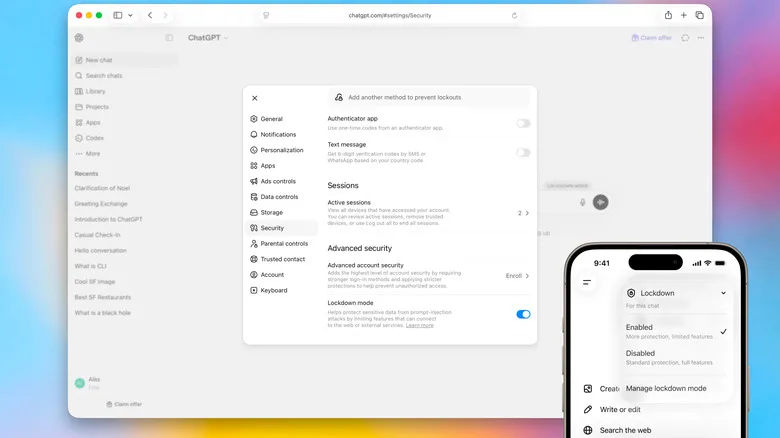
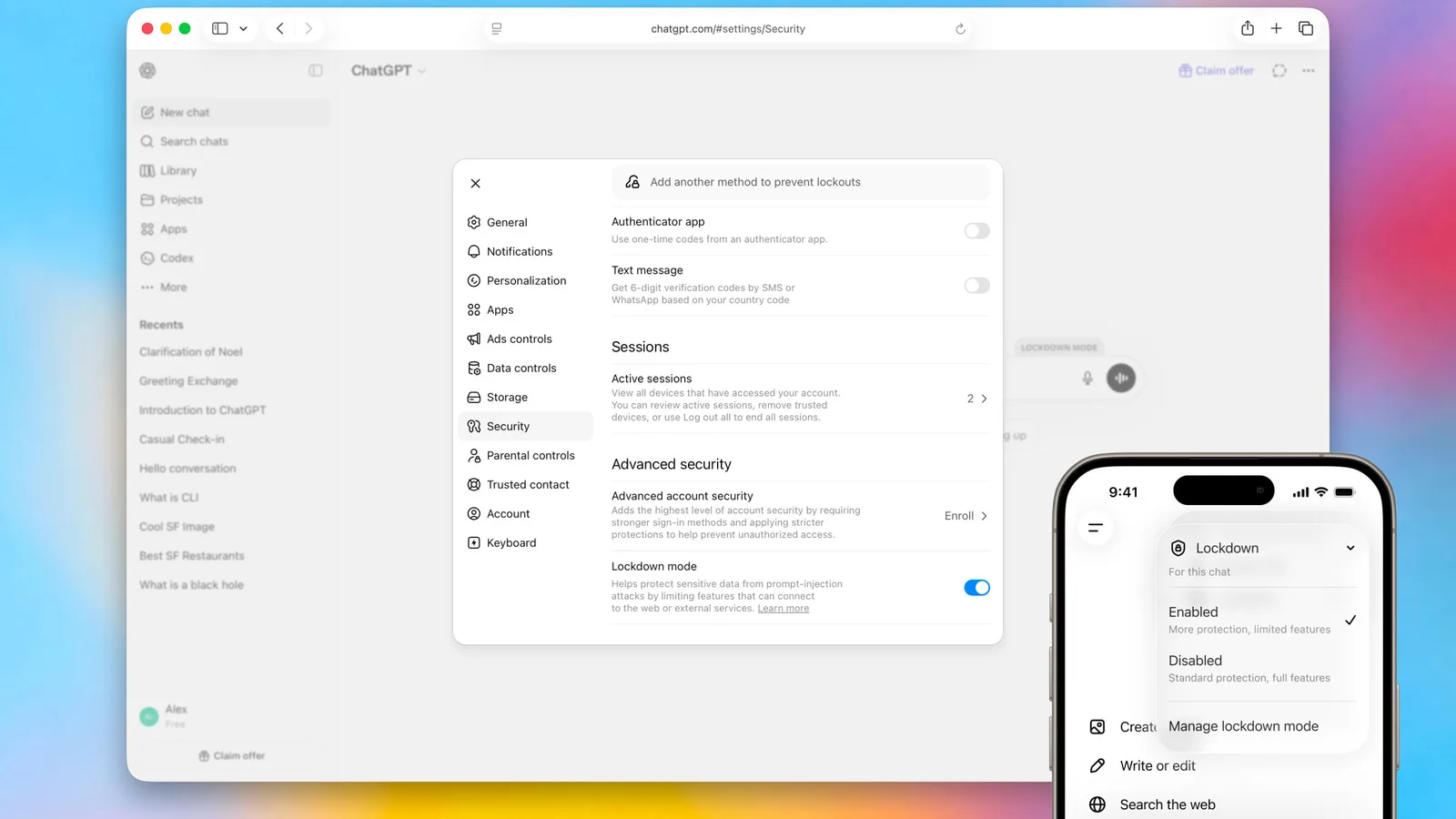
Enabling OpenAI Lockdown Mode is straightforward. Open ChatGPT’s settings, navigate to Safety and security, look for the Advanced security section, and toggle on Lockdown Mode. It’s available to all account types — including free-tier users — which is notable. Security shouldn’t be a premium feature, and OpenAI deserves credit for making this universally accessible rather than paywalling it.
If you need to temporarily disable OpenAI Lockdown Mode for a specific task — say, you need Deep Research for one particular query — you can do that without fully turning the feature off. A status message appears above the chat window when Lockdown Mode is active; select Manage from there and choose Turn off for this chat. It’s a sensible design that avoids the frustration of having to dig back into settings every time you hit a restriction.
The New Session Manager Is Just as Important
Alongside Lockdown Mode, OpenAI is rolling out an active session manager — a feature that’s been standard on everything from Google accounts to password managers for years, but has been conspicuously absent from ChatGPT until now. It shows you every device and browser currently logged into your account and lets you terminate individual sessions or all of them at once.
One detail worth flagging: a full logout of all sessions can take up to 30 minutes to complete. That’s not ideal if you’re reacting to a suspected breach in real time, though OpenAI’s guidance to simultaneously change your password and review sign-in methods suggests the session termination is meant to be one part of a broader response, not a standalone fix.
OpenAI specifically advises: “If you suspect unauthorized account activity, change your password if you use one, review your sign-in methods, and contact OpenAI Support.” Standard advice, but good to have it formalized in the product itself.
The Bigger Picture: AI Security Is Catching Up — Slowly
OpenAI Lockdown Mode lands at a moment when the security community is increasingly vocal about the risks of agentic AI. As models move from answering questions to taking actions — booking travel, writing and running code, managing files — the potential blast radius of a compromised session grows substantially. The prompt injection threat is a direct consequence of that evolution.
Other AI vendors are grappling with the same problem. Anthropic has published research on prompt injection mitigations for Claude, and Google has faced scrutiny over similar vulnerabilities in Gemini’s web-connected features. What OpenAI has done here is translate that theoretical concern into a user-facing control — something tangible that security-conscious users and administrators can actually act on.
Whether that’s sufficient is another question. Security researchers will likely test OpenAI Lockdown Mode’s boundaries quickly, and the history of security features in AI products is short enough that we’re all still learning what works. But shipping a dedicated, accessible control for one of AI’s most discussed attack vectors is a meaningful step — and one that will put pressure on competitors to follow with their own equivalents.
Frequently Asked Questions
What does OpenAI Lockdown Mode actually protect against?
OpenAI Lockdown Mode is designed to prevent attackers from extracting sensitive data from your account by limiting the network requests ChatGPT can make. It won’t stop malicious instructions from appearing in content the AI processes, but it blocks the data exfiltration that would make those attacks damaging.
Does Lockdown Mode affect all ChatGPT features?
Some features are restricted and others are disabled entirely. Deep Research and Agent Mode are turned off completely. Image generation and file uploads still work, but ChatGPT can no longer pull images from the web, display images in responses, or download files for analysis. Memory and conversation sharing are unaffected.
Who should use OpenAI Lockdown Mode?
OpenAI says the feature is not intended for everyone. It’s aimed at people and organizations that handle sensitive data and want stricter controls over data exfiltration risks. Most everyday ChatGPT users won’t need it, but enterprises and high-risk users likely will.
How do you turn on Lockdown Mode in ChatGPT?
Open ChatGPT’s settings menu, select Safety and security, then find Advanced security and tap Lockdown Mode to toggle it on. You can temporarily disable it for a single conversation by selecting Manage from the status message that appears above the chat window.
What is prompt injection and why is it a growing threat?
Prompt injection is a form of attack where malicious instructions are hidden inside content an AI system reads — such as a webpage or document — tricking it into taking unintended actions. As AI assistants gain more ability to browse the web and run tasks autonomously, the attack surface for prompt injection grows significantly.